How To Make Simple Edits to Already Existing Crystal Reports

How to Edit Crystal Reports in SAP Business One: A Simple Guide
If you need to edit Crystal Reports in SAP Business One, you don’t always need to rebuild the report or layout from scratch. Simple changes such as correcting text, moving fields, removing unwanted information, or adjusting an existing layout can often be made directly in Crystal Reports.
In this step-by-step guide, we’ll show you how to open an existing SAP Business One Crystal Report or layout, make simple edits, save your changes, and import the updated version back into SAP Business One.
We’ve also included screenshots for each step and a video tutorial demonstrating the complete process.
Before You Edit an Existing Crystal Report
Before making changes, it’s a good idea to preserve the original report or layout. Even simple formatting changes can create unexpected results, so having an untouched version gives you an easy way to restore the original if necessary.
You should also confirm that you have access to SAP Crystal Reports and the appropriate SAP Business One permissions. SAP Business One’s Report and Layout Manager provides access to reports and layouts and allows authorized users to edit, import, export, and manage them.
For simple edits, you typically don’t need to be a Crystal Reports expert. Changes such as correcting text, moving an existing field, deleting an unwanted object, or making minor formatting adjustments can often be completed without changing the underlying database structure.
Important: If your change involves formulas, database tables, joins, parameters, SQL, or data sources, consider getting assistance before making the change. Those modifications go beyond the simple layout edits covered in this guide.
Step One –
From the SAP Business One Main Menu, go to:
Administration → Setup → General → Report and Layout Manager
Navigate to the report or layout you want to modify and select it. Click Edit to launch the selected layout in SAP Crystal Reports.
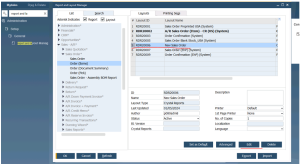
Step 2: Select the Field, Text, or Object You Want to Change
Once the report opens in Crystal Reports, locate the field, text box, label, or other object you want to modify.
For simple layout changes, you can select an existing object and:
- Move it to a different location
- Resize it
- Change the font or formatting
- Edit text or labels
- Remove an object you no longer need
For this tutorial, we’re focusing on simple changes to an existing report rather than modifying formulas, database connections, or the underlying report logic.
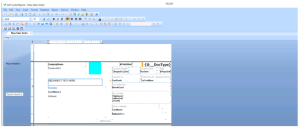
Step 3: Make the Crystal Report Changes
Make the desired changes to the selected objects. When adjusting the layout, pay attention to alignment and spacing so the finished report remains easy to read.
If you’re making several changes, work carefully and avoid modifying fields or formulas you don’t recognize. A seemingly small change to the underlying report logic can affect the information displayed when the report runs.
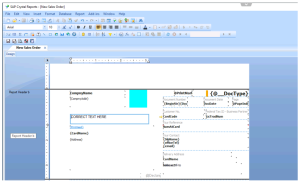
Step 4: Save Your Crystal Report Changes
Once you’ve completed your edits, save the updated report.
SAP Business One and Crystal Reports provide different options for saving reports depending on how the report was opened and how you plan to use it. If you’re modifying an existing SAP Business One layout, make sure you’re saving the correct version and not unintentionally overwriting a report you may need later.
This is another reason we recommend preserving a backup before beginning.
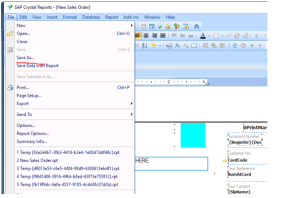
Save this to a location you can find it to import in the next step.
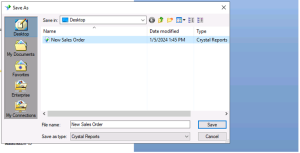
Step 5: Return to SAP Business One
After saving your changes in Crystal Reports, return to SAP Business One and the Report and Layout Manager.
Depending on how you’ve saved the report, you may need to update or import the revised layout before it becomes available to users.

Step 6: Import or Update the Crystal Report
Select the appropriate report or layout in the Report and Layout Manager and import or update your revised Crystal Report as required.
Be careful to select the correct report and layout. If your company maintains several versions of a form or report for different departments, users, or business processes, confirm that you’re updating the intended version.
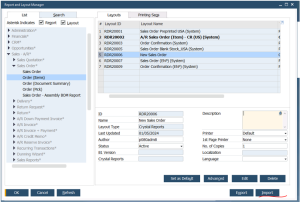
Step 7: Test the Edited Crystal Report
Before considering the project complete, run the report or document in SAP Business One and confirm that everything appears as expected.
Check:
- Field placement and alignment
- Fonts and formatting
- Page breaks
- Headers and footers
- Labels and text
- Totals and other displayed values
- Printing or PDF output, if applicable
Don’t just check the section you changed. A layout adjustment can sometimes affect another portion of the report.
If everything looks correct, your simple Crystal Report edit is complete.
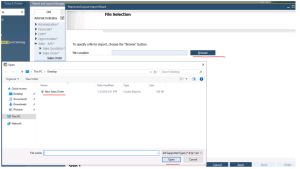
- This example is a Layout so click the radio button for Layout to launch document types. Find the appropriate document type and click Choose.
*If this is a Report type then you will be prompted for where to place this item in the Menu*
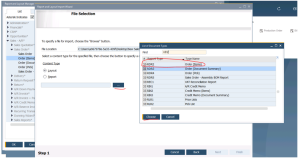
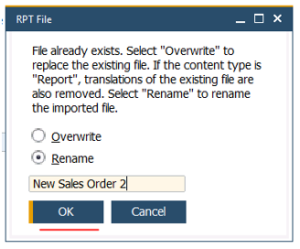
-If the layout already exists you may get a popup to Overwrite or Rename. In this example we will Rename to create a new layout.
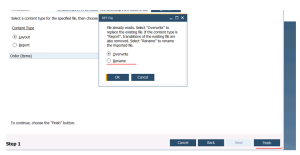
-Rename to create a new layout under this name.
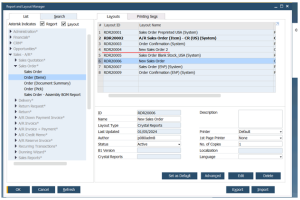
-The new layout has been imported. You can Rename from here. If you would like you can also highlight the older version and click Delete to remove it.
What Crystal Reports Changes Can You Safely Make Yourself?
Not every Crystal Reports modification requires advanced technical knowledge. Many SAP Business One users can make basic layout and formatting changes once they understand how to access the report.
Examples of relatively simple edits include:
- Changing a report title or label
- Moving an existing field
- Resizing a field or text box
- Changing fonts, font sizes, or formatting
- Removing information you don’t want displayed
- Adjusting spacing and alignment
- Changing headers and footers
- Making minor layout adjustments
The key distinction is whether you’re changing how existing information is displayed or changing where the information comes from and how it is calculated.
Display changes are generally simpler. Changes involving the underlying data or report logic can become significantly more complex.
Changing how data looks is usually simpler than changing how the report gets or calculates the data.
Which Crystal Reports Changes Can You Make Yourself?
| Crystal Reports Change | Difficulty | Get Help? |
|---|---|---|
| Change text or labels | Simple | Usually no |
| Move or resize fields | Simple | Usually no |
| Change fonts or formatting | Simple | Usually no |
| Adjust headers or footers | Simple | Usually no |
| Add an existing field | Moderate | Maybe |
| Create or modify formulas | Moderate–Advanced | Often |
| Add database tables | Advanced | Recommended |
| Change table joins | Advanced | Recommended |
| Modify SQL commands | Advanced | Recommended |
| Troubleshoot duplicate data | Advanced | Recommended |
If you’re changing how existing information looks, the edit may be relatively simple. If you’re changing where the data comes from or how it’s calculated, it’s usually time to involve someone with Crystal Reports and SAP Business One experience.
When a Crystal Report Edit Is No Longer “Simple”
This section is important because it prevents the article from giving readers too much confidence.
A Crystal Reports modification can quickly become more complicated when it involves:
- Adding new database fields or tables
- Changing table joins
- Creating or modifying formulas
- Adding parameters
- Changing record-selection logic
- Working with SQL commands
- Creating subreports
- Troubleshooting duplicate records
- Changing data sources
These changes can affect the accuracy of the report—not just its appearance.
For example, adding another database table may require changing the relationships between tables. An incorrect join can cause duplicate records, missing information, or inaccurate totals.
SAP specifically cautions users working with database tables and links in Crystal Reports because automatic linking can create relationships that aren’t appropriate for the report.
A good rule: If your change affects where the data comes from, how records are selected, or how values are calculated, consider getting help from someone experienced with SAP Business One and Crystal Reports.
Prefer to see the process in action? This video walks through how to make simple edits to an existing Crystal Report in SAP Business One.
Watch: Making Simple Edits to Crystal Reports
Common Problems When Editing Crystal Reports
My changes aren’t appearing in SAP Business One
Confirm that you saved the revised report and that SAP Business One is using the layout you actually modified. Organizations can have multiple layouts assigned to different documents or users.
The report looks correct on screen but prints incorrectly
Check page size, margins, printer settings, and the placement of objects near page boundaries. Always test important layouts using the same printing or PDF process your employees normally use.
My report now shows duplicate records
This can indicate a problem with database table relationships or joins. If you’ve added tables or modified the report’s data structure, the issue is no longer simply a formatting change.
A field disappeared after I made changes
Verify that the object wasn’t accidentally deleted, suppressed, moved outside the visible report area, or placed behind another object.
I’m not sure which layout to edit
Don’t guess. SAP Business One environments may contain multiple layouts for similar documents. Identify the layout currently assigned to the document, user, or business process before making changes.
Frequently Asked Questions About Editing Crystal Reports in SAP Business One
Can I edit an existing Crystal Report in SAP Business One?
Yes. Authorized users can access existing reports and layouts through SAP Business One’s Report and Layout Manager and open supported layouts in Crystal Reports for editing.
Do I need to know Crystal Reports programming to make simple edits?
Not necessarily. Basic changes such as moving fields, editing labels, changing fonts, and adjusting formatting can often be made without advanced Crystal Reports knowledge.
Should I make a backup before editing a Crystal Report?
Yes. Preserving the original report or layout gives you a version to restore if the edited report doesn’t work as expected.
Can I add new fields to an existing Crystal Report?
Yes, but adding fields can become more complicated if the required data isn’t already available to the report. Adding database tables, joins, formulas, or SQL may require more advanced Crystal Reports knowledge.
Why should I test a Crystal Report after editing it?
Even small layout changes can affect page breaks, alignment, printing, or other sections of a report. Testing the finished report helps identify problems before users rely on it.
Can Support One help modify SAP Business One Crystal Reports?
Yes. Support One can assist SAP Business One users with Crystal Reports modifications, troubleshooting, reporting requirements, and more complex changes that go beyond basic formatting.
Need Help With SAP Business One Crystal Reports?
Simple Crystal Reports changes can often be handled internally. But when a report requires new fields, formulas, database tables, joins, parameters, or troubleshooting, having experienced SAP Business One support can save considerable time and help prevent reporting errors.
Support One helps SAP Business One users modify Crystal Reports, troubleshoot reporting problems, and get more value from their ERP system.
Learn more about why companies choose Support One for SAP Business One support, including our approach to responsive support, experienced consultants, and helping customers get more from their existing system.
Need help with a Crystal Report? Contact Support One to talk with an SAP Business One expert.

Let’s talk about Creating or Editing a Crystal Report.